
Dashboard & Metrics
Dashboard & Metrics
The Challenge dashboard provides real-time visibility into your identity verification challenges, challenge statistics, and challenge history.
Overview
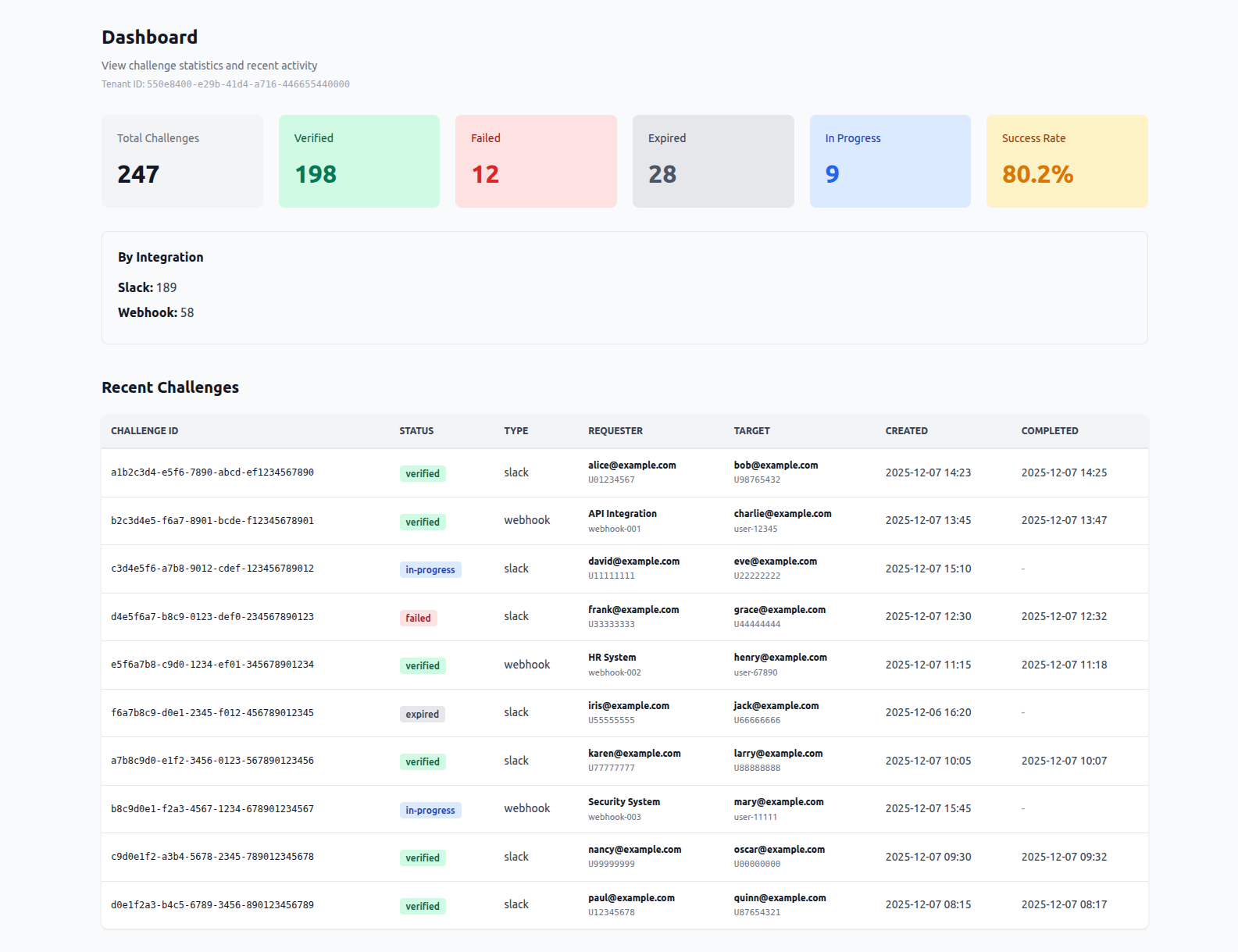
The Challenge dashboard displays:
- Total Challenges: Breakdown of challenges by status (Verified, Failed, Expired, In Progress, Initiated)
- Integration Sources: Breakdown of challenges by integration source (Slack, Webhook API, SAML, OIDC)
- Recent Challenges: List of recent challenges with status and details
- Quick Actions: Access integrations, billing, and settings
Accessing the Dashboard
- Log in to the Challenge admin console at challenge.veraproof.io
- The dashboard is the default page after login
- You can also navigate to Dashboard from the main navigation menu
Note: For usage and billing metrics (challenge counts, tier limits, overage charges, subscription status), see the Billing & Subscription Management page.
Challenge Statistics
The dashboard displays aggregate statistics about your challenges:
Total Challenges by Status
The dashboard shows a breakdown of all challenges by their current status:
- Verified: Number of challenges that completed successfully
- Failed: Number of challenges that failed (authentication failed or user denied)
- Expired: Number of challenges that expired (15-minute timeout)
- In Progress: Number of challenges currently being verified
- Initiated: Number of challenges created but not yet started
These statistics help you understand:
- Success rate of your challenges
- Common failure points
- Challenge completion patterns
Total Challenges by Integration Source
The dashboard shows a breakdown of challenges by how they were created:
- Slack: Challenges created via Slack slash commands or Slack integration
- Webhook API: Challenges created programmatically via the webhook/REST API
- SAML: Challenges using SAML 2.0 authentication
- OIDC: Challenges using OpenID Connect authentication
This breakdown helps you understand:
- Which integration methods are most commonly used
- Distribution of challenges across different sources
- Integration adoption patterns
Recent Challenges
The dashboard displays a list of recent challenges with the following information:
Challenge List Columns
- Challenge ID: Unique identifier for the challenge
- Target User: Email address or identifier of the user being challenged
- Status: Current challenge status (see Challenge Statuses below)
- Created: Timestamp when the challenge was created
- Completed: Timestamp when the challenge was completed (if applicable)
- Method: Authentication method used (SAML, OIDC, or Slack)
- Requester: Who or what system created the challenge
Challenge Statuses
Challenges can have the following statuses:
- Initiated: Challenge created but not started by the user
- In Progress: User has started the verification process
- Verified: Challenge completed successfully - identity verified
- Failed: Challenge failed (authentication failed or user denied)
- Expired: Challenge expired (15-minute timeout)
Viewing Challenge Details
To view detailed information about a specific challenge:
- Find the challenge in the recent challenges list
- Click on the challenge row or the View button
- A detail view will show:
- Full challenge metadata
- Device fingerprinting information (if collected)
- Authentication method and IdP used
- Timestamps for all challenge events
- Webhook callback status (if configured)
Filtering and Searching Challenges
You can filter and search the recent challenges list:
Filter by Status:
- All Challenges
- Verified
- Failed
- Expired
- In Progress
- Initiated
Filter by Method:
- All Methods
- SAML
- OIDC
- Slack
Search:
- Search by target user email
- Search by challenge ID
- Search by requester
Date Range:
- Filter challenges by creation date
- View challenges from specific time periods
Quick Actions
The dashboard provides quick access to common actions:
- Create Challenge: Quick link to create a new challenge (if you have webhook API access)
- View Integrations: Navigate to integration management
- View Billing: Navigate to billing and subscription management
- View Settings: Access IdP and application settings
Exporting Challenge Data
You can export challenge data for reporting and analysis:
- Use the filter options to select the challenges you want to export
- Click the Export button
- Choose export format (CSV or JSON)
- Download the file containing challenge data
Exported Data Includes:
- Challenge ID
- Target user information
- Status and timestamps
- Authentication method
- Device fingerprinting data (if available)
- Requester information
Best Practices
- Review Failed Challenges: Investigate failed challenges to identify configuration issues or authentication problems
- Monitor Status Distribution: Track the breakdown of challenge statuses to understand success rates and identify issues
- Track Integration Usage: Use integration source statistics to understand which methods are most effective
- Export for Auditing: Regularly export challenge data for security audits and compliance
- Monitor Trends: Review recent challenges regularly to identify patterns or anomalies
Troubleshooting
Statistics Not Updating
- Refresh the dashboard page
- Check that challenges are being created successfully
- Statistics update in real-time as challenges are created and completed
Challenge List Not Showing
- Check your filter settings - they may be hiding challenges
- Verify you have challenges in the selected date range
- Clear filters and try again
Statistics Seem Incorrect
- Statistics are calculated in real-time based on all challenges
- Refresh the page to see the latest statistics
- Status breakdowns include all challenges regardless of completion status
Support
For issues or questions about the dashboard or metrics, contact [email protected].
For related guides, see:
- Webhook Integration - Create challenges programmatically
- Slack Integration - Use Slack slash commands
- Billing & Subscription Management - Understand usage and billing